Launching a Smart TV app is a big step, but getting the first version ready is only half the battle. Before your app can reach millions of living rooms, it must pass the demanding QA and certification processes of platforms like Samsung Tizen, LG webOS, Google TV, Apple TV and Roku.
These platforms maintain strict standards to ensure stability and usability. For developers coming from mobile or web backgrounds, the fragmented Smart TV landscape can be a surprise. It is not two major platforms you need to cover, but over a dozen.
In this guide, we break down what the QA teams want, how to prepare a submission that has a chance of getting through, and how to manage the app lifecycle and updates without frustrations.
What are the QA Teams checking?
While every platform has its own specific checklist, they all focus on the same core pillars of quality. Their goal is to protect the user and brand experience on the big screen.
- Functional Stability: Does the app launch, play video and exit without crashing? Does it handle network interruptions gracefully without freezing the TV?
- UX and Guideline Compliance: Does the app follow the platform’s specific interface guidelines? Does it follow normal app launch and exit procedures?
- Performance: Does the app load within acceptable time? Are the transitions and navigation smooth, and in-app loading times in control? Is the feedback relevant to the user?
- Content, purchases and Policy: Are age ratings, legal terms and metadata correct? Is the content appropriate for the target age groups?
- Payments and in-app purchases: Premium content access and all instances where payment data is handled must be compliant and negotiated with the platform owner.
- Accessibility and remote control Behavior: The app must support both standard IR navigation and manufacturer pointing devices perfectly and adhere to accessibility directives of the target markets.
Before You Submit: What is on The Smart TV QA Precheck List?
To avoid a rejection that could cost you weeks of delay, run through the manufacturer self-check and pre-check lists before you upload your application. The next chapter gives some additional insights.
Clarify Target Platforms and Device Scope
Decide which platforms and model years you are supporting. Note that general term like “Samsung Tizen” is not a proper target. Tizen can mean devices from 2015 to 2025 and beyond, and each has different performance capabilities and hardware configurations, even inside a single generation of devices. Make sure you are able to test the platforms you want to distribute to and be clear about your minimum supported configuration in your documentation to avoid being tested on incompatible hardware. Note that some manufacturers may restrict submitting to older devices.
Review Platform Guidelines and Mandatory Rules
Every platform has mandatory features that cause certain disapproval if missing. Common examples include:
- Exit Behavior: Exit functionality must be consistent and trigger only a single exit confirmation to return the TV operating system home screen. Some platforms may have different approaches to exiting the application and it can also be different between the OS versions of the TV
- Parental rating and content locking: Platforms have different conditions and demands depending on the content in your application. Failures to meet the requirements in this area are certain to cause the app to be rejected.
- Input devices: Some platforms have specific requirements for the input devices in addition to standard TV remote control.
Prepare Test Accounts, Content and Staging Environments
For successful testing, the environment to test the app, including credentials and necessary access to all content, is needed. The environment must reflect the commercial operating environment as closely as possible, preferably the environment should be the same as for the end-users.
- Test Accounts: Provide credentials that have access to all content types.
- Staging Stability: Use a stable staging environment that mirrors production.
Crucial Note on Geoblocking: Platform QA teams are often located in specific regions outside your home market. If your content is geoblocked to your specific country, the QA team can’t play the video. This is a frequent cause of confusion and causes delays. The IP ranges of the QA teams must be allow-listed or alternatively the test accounts must be configured to bypass geoblock in the backend.
Run Structured Pretests on Real Devices
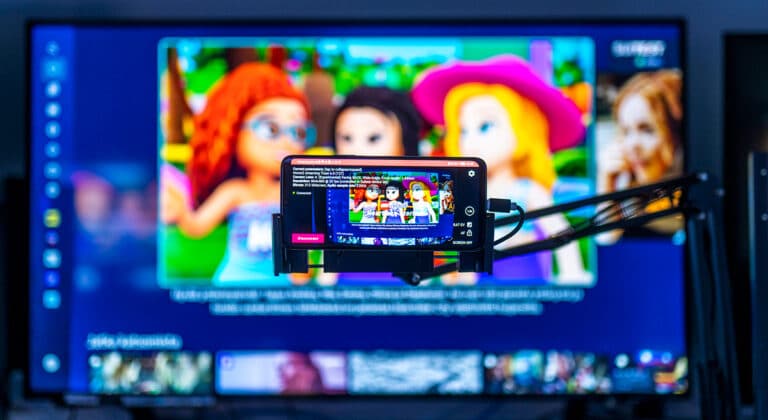
Never rely solely on emulators or browser-based simulators. They cannot accurately reproduce video player behavior, DRM issues, or memory constraints of older TVs.
Run your pre-test checks on real hardware covering these flows:
- Basic functionality: Install > First Run > Login > Playback > Logout.
- Error Handling: Physically disconnect the internet cable during playback. Does the app show a user-friendly error message, or does it freeze?
- Input Testing: Test navigation using only the D-Pad and then again using only the pointing devices to ensure focus states work in both modes.
In addition to these very basic cases, run through the manufacturer pre-check list to cover all bases.
Document Known Limitations
If there is a feature that behaves differently “by design” such as 4K content not available on some models, write this down clearly in your submission notes. This prevents QA testers from flagging intended behavior as a bug.
How Does The Smart TV QA Submission Process Work?
Once your app is ready, the submission process generally follows this flow:
- Create the supplier account: Add the app provider details to the QA portal and obtain the necessary registration for the right to submit applications for approval.
- Portal Entry: Create or update the app entry in the vendor portal.
- Metadata: Upload store assets, screenshots, content ratings and country availability. If your app includes in-app purchases, prepare for more negotiations with the platform owner.
- Binary & Environment: Upload the app binary and provide test account credentials and notes. Often you need to prepare also a separate PowerPoint presentation, where you describe each view of the application and specify what different UI elements are meaning.
- Review Phase: The platform QA team picks up the task. Be patient, since this process can take a while.
- Feedback/Approval: If defects are found, you must fix them and restart the cycle. If the app is approved, congratulations!
Why Do Smart TV Apps Fail QA?
- Instability: The app is not stable enough in long-term use, or video playback is not robust enough for production use.
- Broken Navigation: Focus gets “lost” and no button is highlighted. Pointing device support is not compliant.
- Device diversity issues: The app works on a high-end configuration but hangs on a low-end model with less memory, for example.
- Inaccessible Content: Testers outside your region cannot play video due to geo-blocking.
- Guideline Violations: Including adult content in general availability application or not disclosing scope of customer data collection in the application.
How should you communicate with Platform QA Teams?
Clear communication reduces back-and-forth time significantly. When submitting, include a step-by-step guide on how to log in and use the application.
Do you need a new QA round for bug fixes?
Many companies make the mistake of thinking QA is a one-time launch hurdle. Updates often require the same certification process as a new app. However, this is heavily dependent on how the app is built. If most of the functionality is residing on server-side, new submissions are not needed. However, if the code is mostly delivered together with the client application, even a small change may trigger a new QA round.
Since hotfixes that need to go through the QA are anything but instant on Smart TV platforms, careful regression testing is vital. One should maintain a thorough and preferably automated test plan that is run for every release on all platforms, to ensure that fixing one bug doesn’t break anything on another TV model.
What Does a Smart TV QA Partner Do?
Managing device fragmentation, test accounts, and submission portals for five different platforms can be overwhelming for internal development teams. This is where a specialized QA partner adds value.
A dedicated Smart TV QA partner will:
- Design a Strategy: Create a cross-platform test plan that covers all necessary requirements.
- Execute Testing: Run the app on real devices across all target generations.
- Handle Submission: Manage the portal work and communicate with the platform QA teams directly to resolve issues.
Sofia Digital’s Role in Getting Apps Approved and Updates Passed
At Sofia Digital, we don’t just build Smart TV apps. We help you maintain their performance and availability. Our goal is to use our experience to make the certification process as efficient as possible.
Experience with Smart TV QA and Certification
We have years of experience working with the approval workflows of Samsung, LG, Google TV, VIDAA, TitanOS, FireTV, Apple TV and more. We understand not just the technical requirements but also the common pitfalls in each platform.
Real-Device Testing with Sofia Test E-Zoo
Our always-available TV Lab houses over 250 Smart TV models. We test the application on the actual hardware and software your customers use. This covers all major manufacturers, TV operating system versions and device generations. This allows us to:
- Catch browser compatibility issues on older software
- Catch performance issues on older hardware.
- Verify compatibility with both standard and smart remotes.
Submission and Certification Support
We offer flexible support packages to fit your lifecycle stage:
- Pre-submission Check: A one-time audit to check the pre-test lists for each manufacturer to ensure successful submit before launch.
- Full QA & Submission Management: We handle the entire process including documentation and communication with platform QA contacts.
- Lifecycle Support: Continuous QA for your regular app updates and maintenance releases.
Getting an app approved requires attention to detail and knowledge of the platform rules. Partnering with Sofia Digital gives you the testing infrastructure and certification experience needed to navigate this process smoothly.
FAQ: Smart TV QA Approval, Updates and Submission
How long does Smart TV QA approval usually take?
It varies by platform and time of year but typically ranges from a week to 2 months. If issues are found, the clock resets when you submit the fix.
Do Smart TV app updates need full QA again?
Depends. If your application is designed to be hosted on a remote server, new QA is not usually needed. However, if you compile your code with the application package itself, QA is needed. This may be the case for example flutter-based designs.
How many devices should I test before submitting a Smart TV app?
You should test at least one real device from each “platform generation” you want to launch the app in. Also, make sure you cover the low-end models with less memory of each generation as well.
Can I reuse the same Smart TV app build for Samsung, LG and Google TV?
While you may share some web code, the application packaging and platform integration are different for each ecosystem and require separate builds and QA processes.
What should I provide to platform QA teams besides the app binary?
You must provide working test accounts with active subscriptions, instructions on how to reach the content, and a stable backend environment. If your content is geo-locked, you must whitelist the QA team’s IPs or provide an open test account.
What can I do if my Smart TV app is rejected in QA?
Read the defect list carefully. Reproduce the issue on a real device of the same model year if possible. Fix the issue, and ideally record a video of the fix working on that device, and resubmit the app with the video attached to explain the resolution.
Read also: